Overview
Empowered AI is an advanced module of Energy Logserver platform, designed to enhance event detection, correlation, and data analysis across IT and OT environments. It combines mathematical data-analysis methods together with language-model-based detection, creating a powerful and comprehensive analytical engine.
The module uses statistical techniques to identify anomalies, recognize behavioral patterns, and detect deviations that may indicate security incidents or system failures.
A key component of Empowered AI is the use of Large Language Models (LLMs), including our dedicated on-site extension “AI on Prem”. This technology enables local execution of language models within the customer’s environment, ensuring no data leaves the organization. As a result, Empowered AI delivers advanced semantic detection, event classification, and automated analytical support while maintaining full data privacy and security compliance.
By combining mathematical precision with contextual understanding from language models, Empowered AI provides a modern, multi-layered approach to detection and analytics in complex log environments.
Important to note that Use Cases can work in batch or in realtime - connected to Network Probe pipeline.
Empowered AI is an ongoing project, continuously improved by a team of mathematicians, data scientists, and security analysts.
Use Cases
In the Empowered AI section you will find a summary of the existing use cases, connecting rules and data to work with. At the top, you’ll find the total number of configured cases and the number of scheduled and unscheduled cases. Here is the search field and buttons Refresh, Create and Upload.
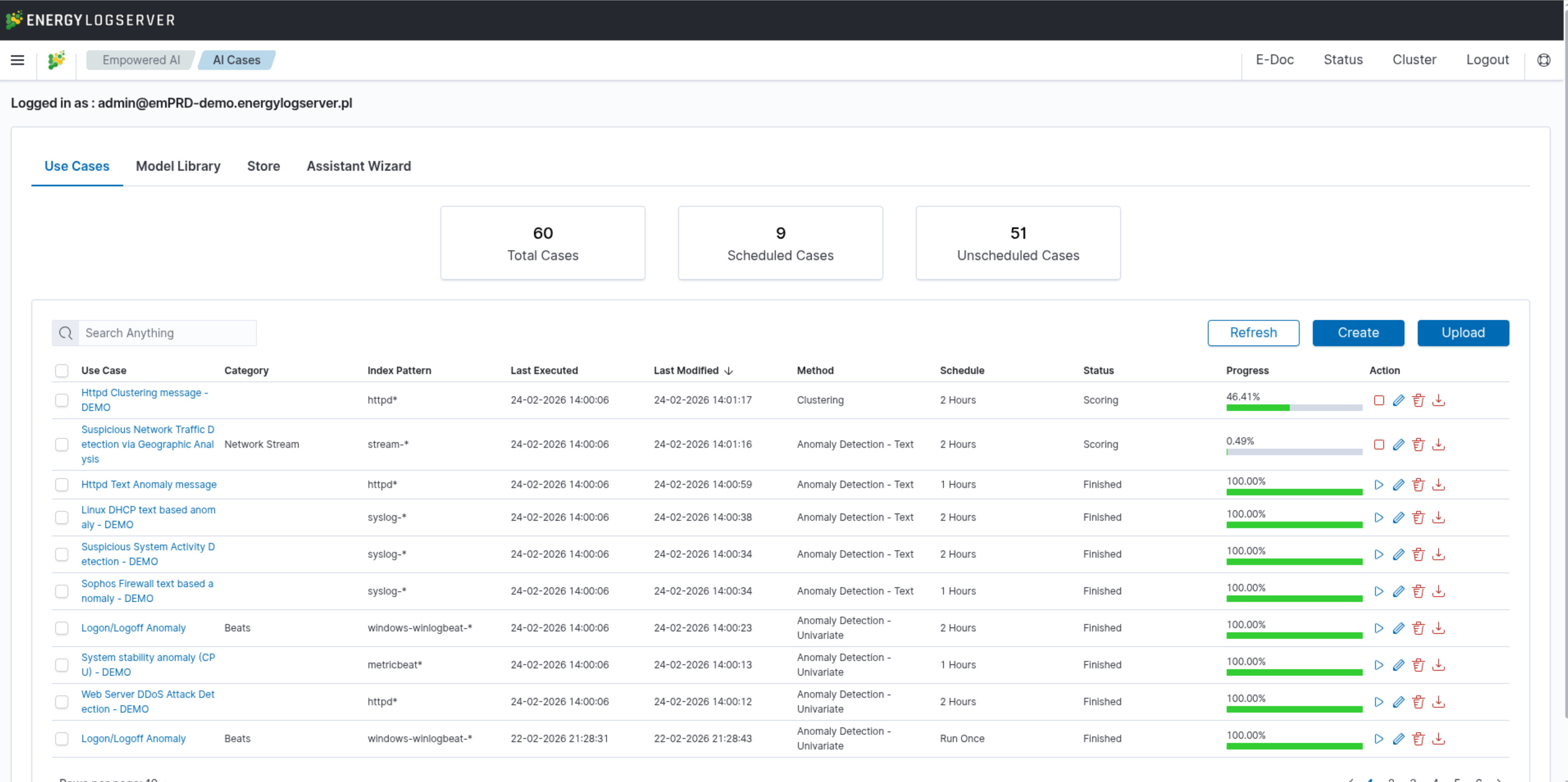
Table contains the following columns:
Use Case- unique name for the rule running on selected dataCategory- given category name upon createIndex Pattern- data to work withLast Executed- date when last use case was ExecutedLast Modified- when last use case configuration was changedMethod- selected algorithmSchedule- configuration of scheduling optionsStatus- current calculation statusProgress- progress bar in %Action- additional use case management
Status
The rule has one of the following statuses:
Waiting to start -
Run oncerule starts by clicking symbol playScheduled - the scheduled rule starts automatically
Scoring
Building
Finished
Error - check error details in the results preview
Actions
Icons of actions:
Play – run or rerun the rule
Stop – unschedule periodic rule, after this action rule type changes to Run Once
Pencil - edit the rule’s configuration
Bin – delete the rule
Download - get the full usecase, rule definition and its config
Create Use Case
To create a new use case, click the Create button in the Use Cases tab. The Create New Use Case dialog will open.
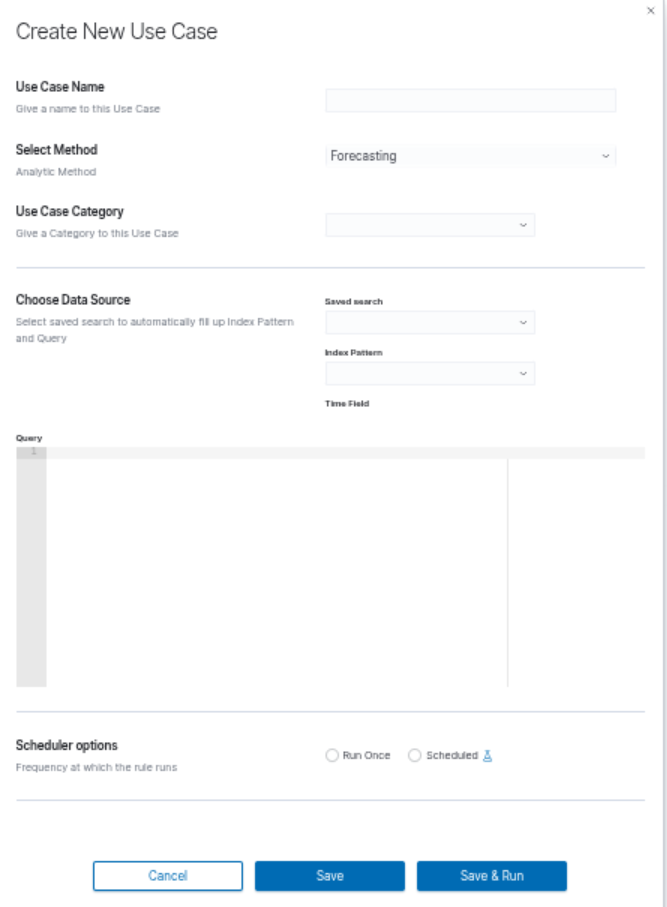
Data Source
The first step is to prepare the data source. You can use a saved search to automatically fill in the Index Pattern and Query fields, or enter them manually.
To create a saved search in Discover:
Go to the Discover module and select the data source you want to analyze.
Set filters and search criteria to narrow down relevant data (KQL/OQL not supported).
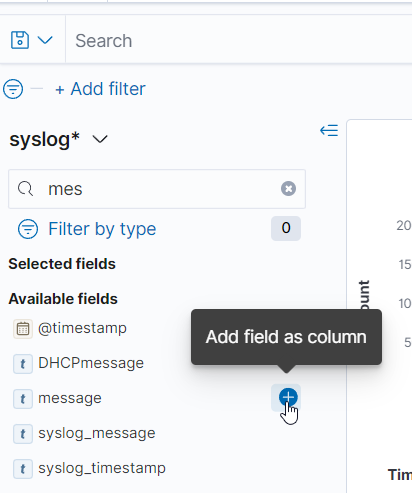
Optionally add fields as columns to make them available during rule creation:
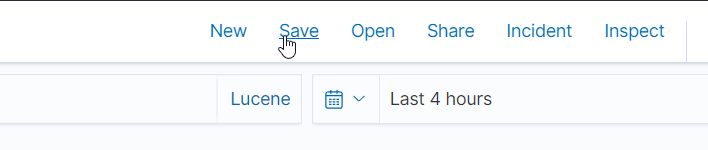
Save the search by clicking the Save button, naming it, and clicking Save again:
In the Create New Use Case dialog, select the saved search from the Saved search dropdown. The Index Pattern and Query fields will be filled in automatically. Alternatively, select the index pattern and enter the query manually.

Configuring the Use Case
Enter a name in the Use Case Name field.
Select the analytical method from the Select Method dropdown: Forecasting, Anomaly Detection – Number, Anomaly Detection – Text, Clustering, or Relationship Mining.
Select or enter a category in the Use Case Category field.
In the Field to Analyse section, select the data field to analyze.
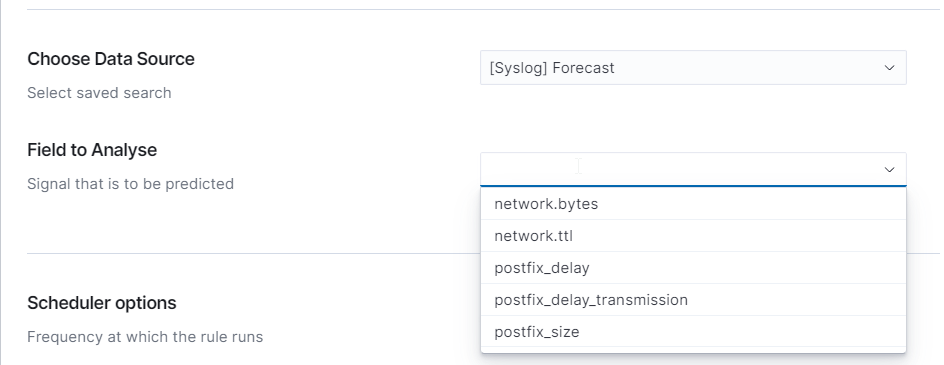
Configuring the Scheduler
The use case can be run immediately or on a schedule:
Run Once — runs the analysis once. Provide the Build Time Frame (learning period) and the Start Date.



Scheduled — runs the analysis repeatedly at a defined frequency (hourly, daily, weekly, monthly). Specify the Start Date Offset for the data range to be analyzed.

Actual Log Count displays the number of logs to be analyzed:

Accessing Performance Results
To view the results of a completed use case, click on its name in the Use Cases list. The Performance view will open, displaying the Use Case Configuration and Model Performance sections.