AI Assistant
This section covers the integration of Energy Logserver with Large Language Models (LLMs). Configuration here manages the AI Assistant and the AI Agent, both available from the Discover tab. Each LLM provider requires a GPU-capable endpoint where semantic operations can run.
Energy Logserver strongly recommends using local AI resources or trusted providers. Remember, security is always local!
AI on Prem is a dedicated hardware appliance that can be deployed in your local environment.
Everything is configured from Empowered AI → Assistant Wizard, which is split into three tabs: Prompts, Knowledge, and Providers. The sections below follow this order.
Providers
Energy Logserver ships with a predefined LLM provider hosted in the Energy Logserver data center. This provider is available at no additional cost under an active support agreement — communication is encrypted and prompts are not recorded. For fully local processing, AI on Prem is a hardware appliance ready to operate from your server rack. The following external providers are also supported: Ollama, OpenAI, Anthropic, Fireworks, and custom HTTP endpoints. Configure each provider in the Providers section by specifying its URL, model name, and other attributes.
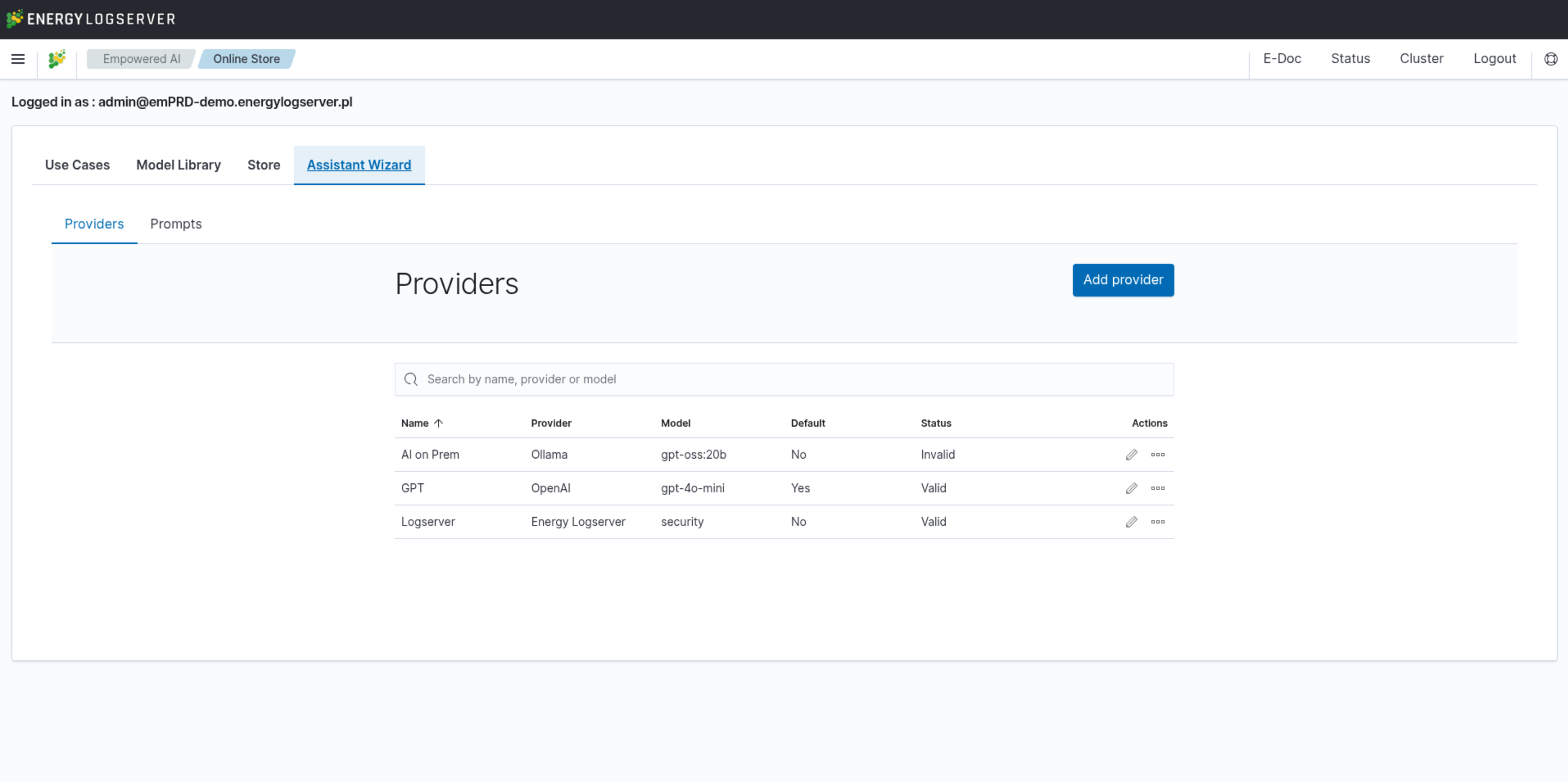
Configuring AI on Prem Connection
AI on Prem is a local hardware solution that allows you to run Large Language Models within your infrastructure, ensuring complete data privacy and compliance. The following steps describe how to configure a connection to AI on Prem using the Ollama provider.
Prerequisites:
Before configuring the connection, ensure that:
AI on Prem hardware is properly connected to your network
The AI on Prem device has been assigned an IP address
Network connectivity between the Energy Logserver GUI node and AI on Prem is allowed in your network firewall rules
The Ollama service is running on the AI on Prem device (default port: 11434)
Configuration Steps:
Navigate to the Empowered AI module and select the Assistant Wizard tab:
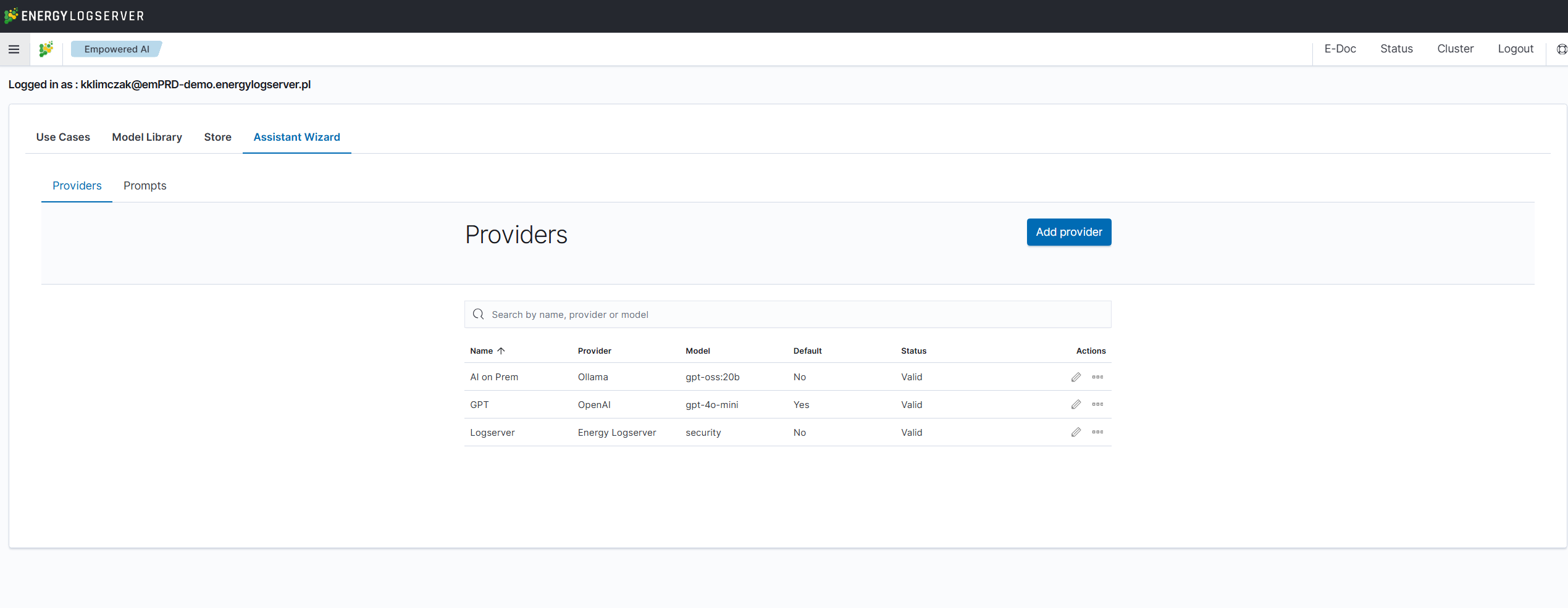
Click Add provider button to create a new provider configuration. In the General section, configure the following:
Name: Provide a descriptive name for your AI on Prem connection (e.g., “AI on Prem”)
Provider: Select Ollama from the dropdown menu
Model: Enter the model name available on your AI on Prem device (e.g., “gpt-oss:20b”)
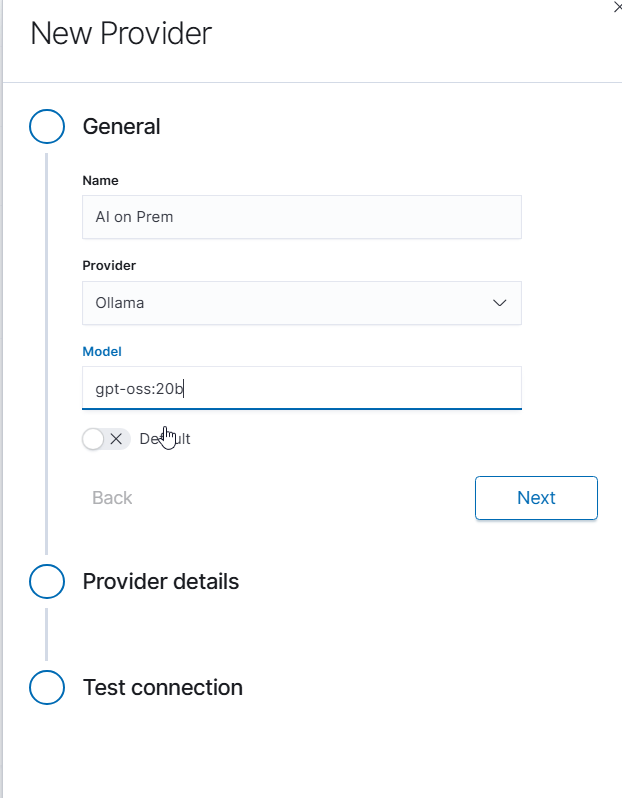
Click Next to proceed to provider details.
In the Provider details section, enter the connection information:
URL: Enter the full URL of your AI on Prem Ollama service in the format
http://<IP_ADDRESS>:11434Replace
<IP_ADDRESS>with the actual IP address assigned to your AI on Prem deviceExample:
http://10.4.3.12:11434
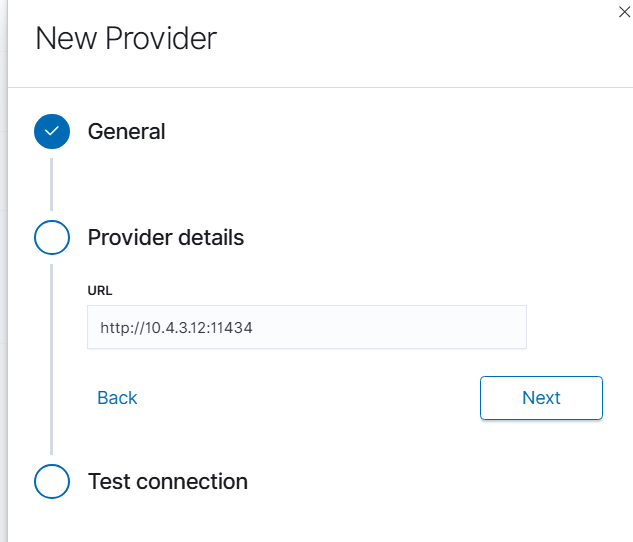
Click Next to proceed to connection testing.
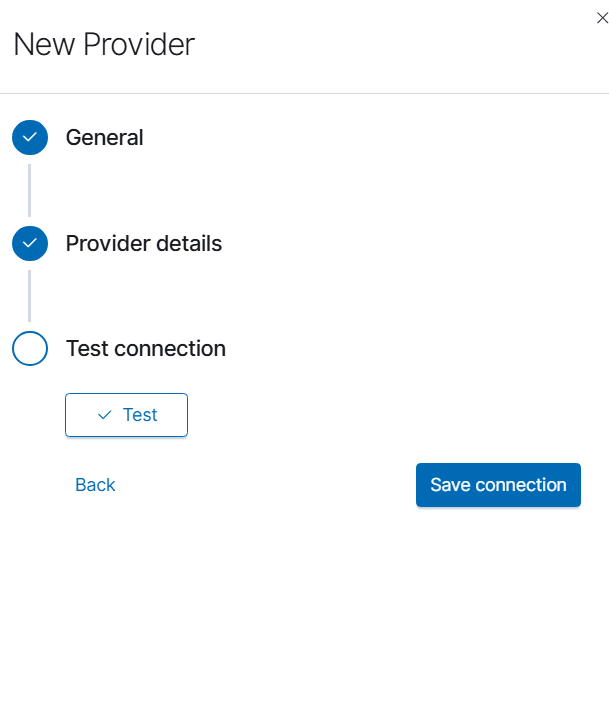
In the Test connection section, click the Test button to verify connectivity to your AI on Prem device. If the connection is successful, click Save connection to complete the configuration.
Troubleshooting:
If the connection test fails, verify the following:
The AI on Prem device is powered on and connected to the network
The IP address is correct and reachable from the Energy Logserver GUI node (use
pingcommand)Port 11434 is open in your firewall between the Energy Logserver GUI node and AI on Prem device
The Ollama service is running on the AI on Prem device
Network routing is properly configured between VLANs or network segments if applicable
Once configured, the AI on Prem provider will be available for use in AI Assistant prompts and can be selected as the default provider for your organization.
Prompts
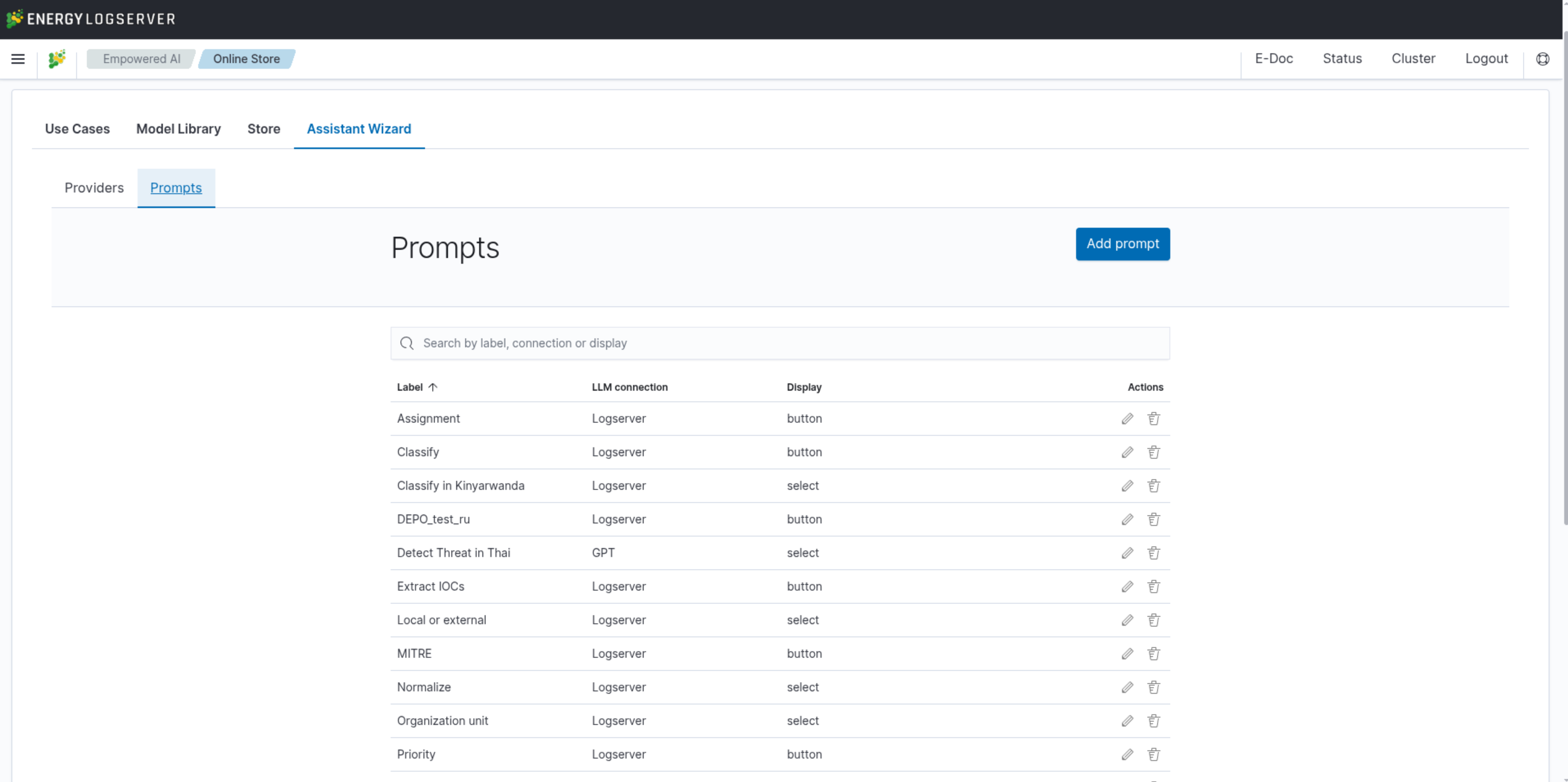 Energy Logserver allows you to create custom prompts for use in the AI Assistant. A prompt describes a problem to solve using a provided log entry — it can be any analytical task or technical inquiry that the model can address. Each prompt can be assigned its own AI provider.
New prompts can be deployed as new button, new entry on the list or stored as draft for later.
Knowledge Chapters
Chapters are datasets that the AI Agent can read during a conversation. They turn arbitrary reference material — PDFs of internal policies, compliance documents, vendor manuals, or a slice of log data from Discover — into a searchable knowledge base for the model. Chapters are managed in the Knowledge tab of the Assistant Wizard.
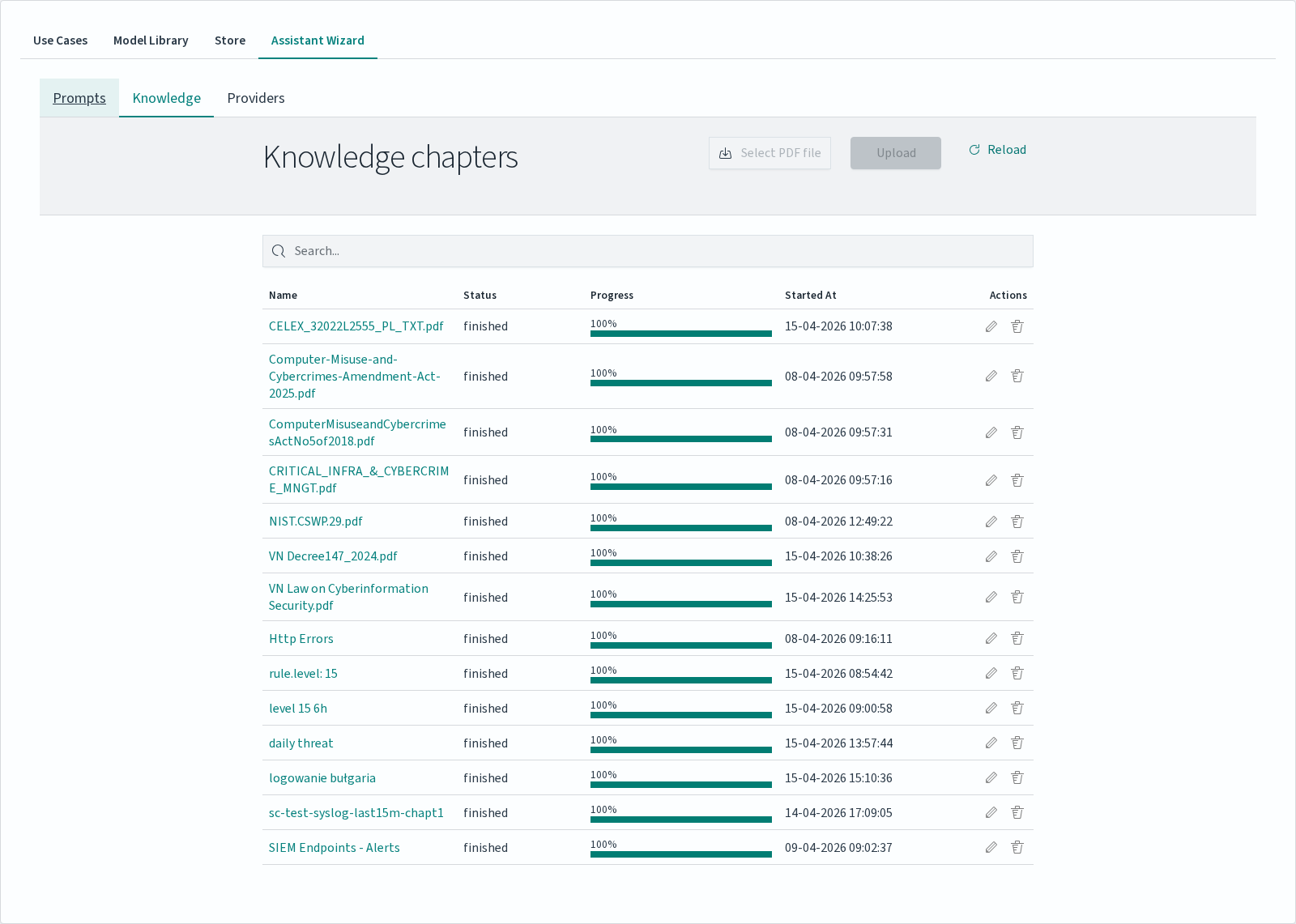
The Knowledge table lists every chapter with:
Column |
Description |
|---|---|
|
File name for PDF chapters, or a descriptive name for chapters created from log data. |
|
|
|
Vectorization progress bar. Reaches 100% when the chapter becomes usable. |
|
Timestamp of the chapter creation / upload. |
|
Per-row edit and delete controls. |
Uploading a PDF Chapter
To add a PDF as a chapter:
In the Knowledge tab click Select PDF file and pick a file from your workstation.
Click Upload to start processing. A new row appears in the table with
runningstatus and a progress bar.Wait for the status to change to
Finished. The chapter is then available to attach in AI Agent conversations.
Use Reload to refresh the status of in-progress uploads.
Note
The default PDF upload limit is 2 MB (2097152 bytes), set via server.maxPayloadBytes in /etc/logserver-gui/logserver-gui.yml. To accept larger files, raise this value and restart the logserver-gui service.
Creating a Chapter from Discover
Log data can be turned into a chapter directly from the Discover tab, so that a Discover query becomes a persistent knowledge source for the AI Agent. The chapter captures the current query and its result set, and is indexed in the same way as a PDF.
Chapters created this way appear in the Knowledge table alongside PDF uploads and can be attached to conversations in the same manner.
How Vectorization Works
When a chapter is uploaded or created, Energy Logserver runs a vectorization job in the background. The job splits the source material into segments and converts each segment into a numerical vector using the default provider’s embedding model. These vectors are stored in a dedicated index named .intelligence_knowledge_pdf_<file>_<timestamp> (one index per chapter).
Note
The splitting strategy differs between PDF and Discover chapters:
PDF chapters are split into overlapping text chunks (default 1300 characters with 300-character overlap, recursive character splitter). A single PDF therefore produces many segments, and the
(N)count next to the chapter in the Attach chapters panel reflects the vectorised segment count.Discover chapters do not run through a text splitter. Each matched document becomes exactly one segment — the
(N)count equals the number of source documents. Records longer than the embedding model’s input window (128 tokens for the defaultall-MiniLM-L6-v2model) are truncated at indexing time; semantic search over the trailing part of such records will not match.
During an AI Agent conversation, the model performs semantic search against the attached chapters: the user’s question is vectorized with the same model, and the most relevant segments are pulled from the chapter indices and included in the model’s context. This is why chapters must reach Finished status before they can be used — until vectorization completes, there is nothing for the Agent to search.
Progress and estimated execution time are visible in the Knowledge table. Document throughput is reported while the job runs.
AI Assistant in Discover
Log analysis is empowered with AI Assistant. For each log entry user can run predefined prompts or use own prompts for deeper analysis.
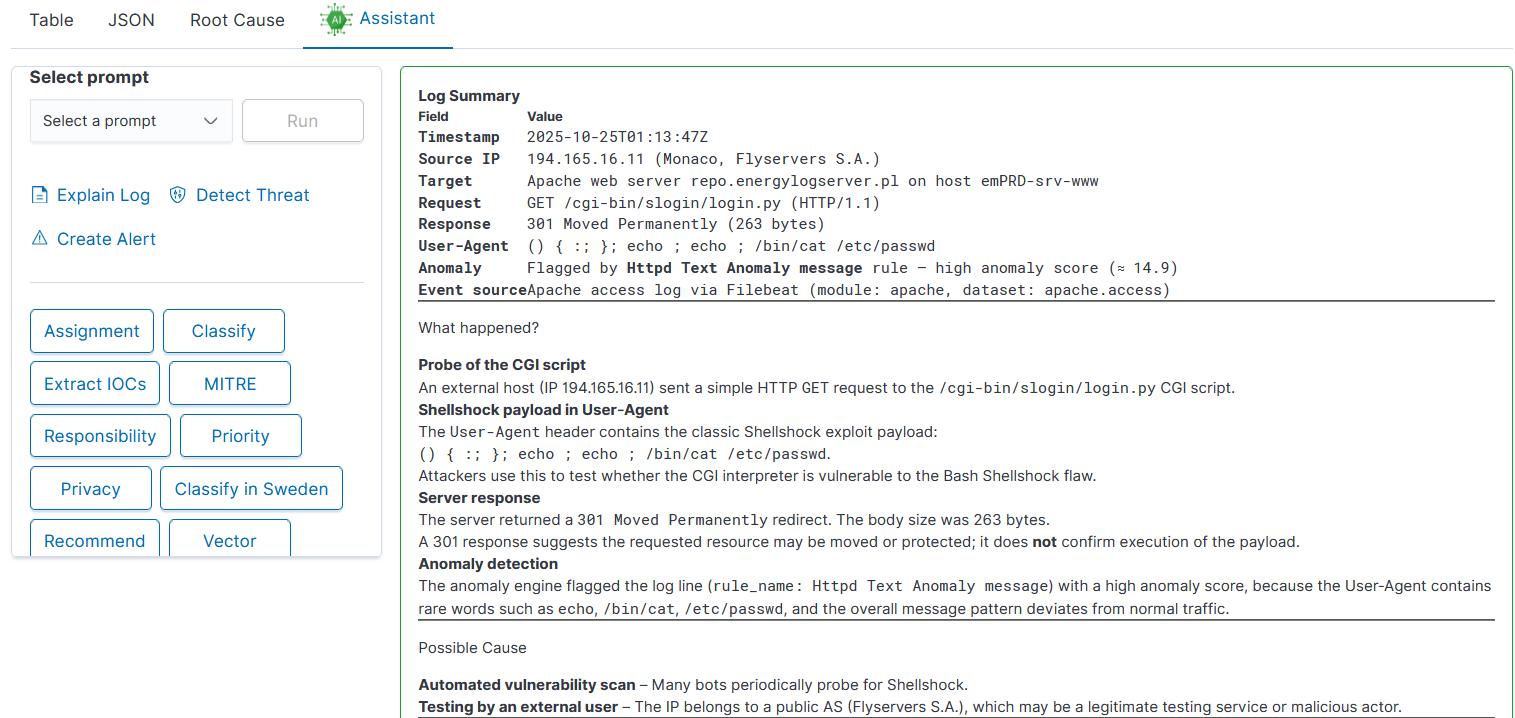
AI Assistant comes with three sections:
User prompts on the list
Embedded prompts
Default user prompts as buttons
All User prompts can be configured in Empowered AI - AI Assistant. Embedded prompts are immutable.
Description:
Explain log: gives detailed information about the meaning of log entry
Detect Threat: AI will semantically try to understand the meaning of log entry and try to detect possible security threat. Detection is done on a language level, not with regexp
Create Alert: AI will generate Alert rule, trying to match context of the message and not exact message value
Default prompts are deployed as buttons and can be modified in Empowered AI AI Assistant.
Description:
Assignment: match IT department / team with the problem defined - prompt can be adjusted to map team members to departments allowing quick incident escalation
Classify: match event category
Extract IOCs: easy way to copy all artefact like ip, username, program, etc
MITRE: describe threat using MITRE methodology
Responsibility: identify responsible team
Priority: analyze the entry estimating its priority in details
Privacy: check for sensitive, private data
Recommend: check for recommendations AI can provide for the problem
AI Agent in Discover
AI Assistant runs a single prompt against a single log entry. The AI Agent is the conversational counterpart: an open chat that can reason about large datasets using selected Knowledge Chapters as context. It is designed for investigations that need multi-step dialogue with the model rather than a one-shot prompt.
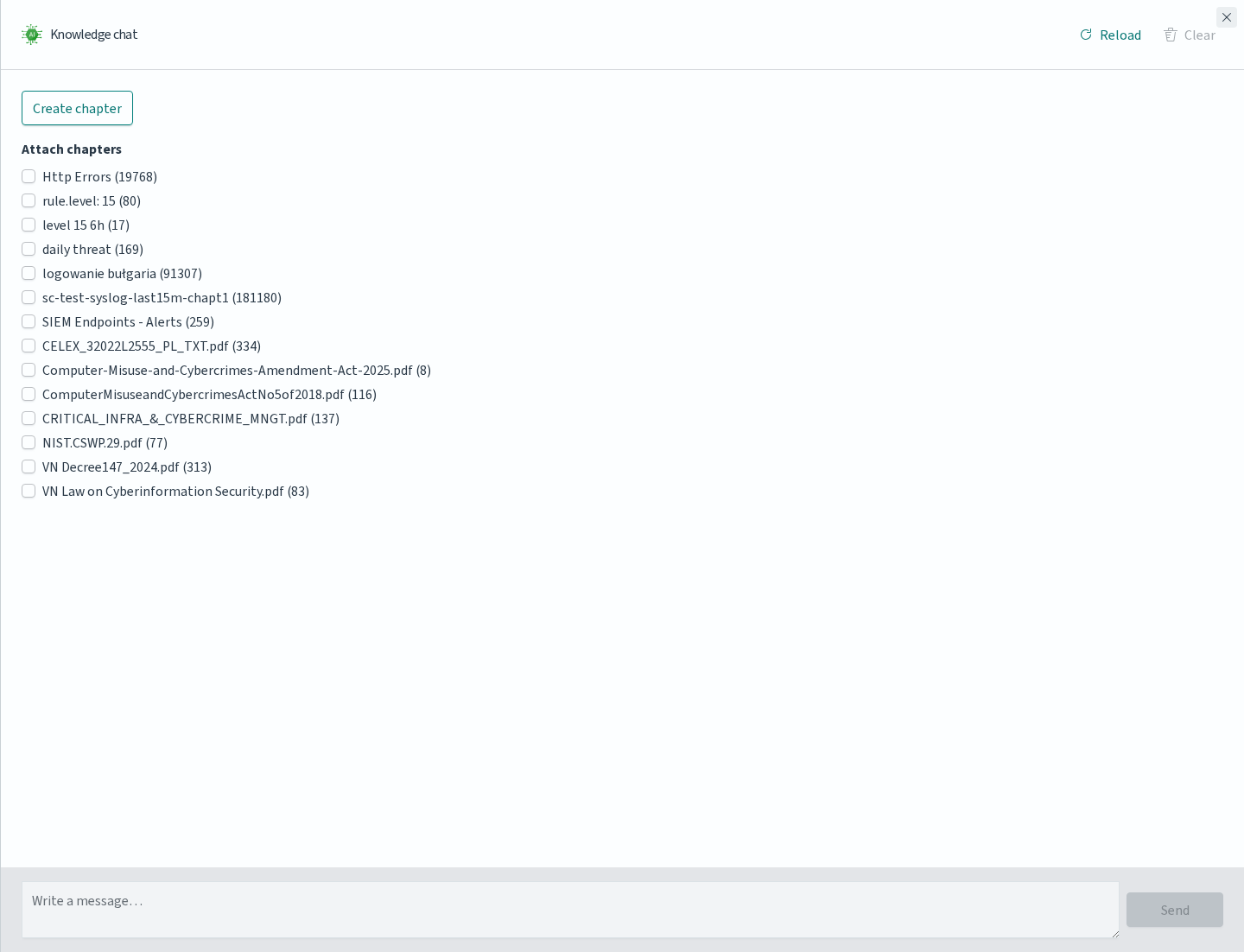
Open the AI Agent by clicking the Assistant button in the Discover toolbar. A Knowledge chat panel appears on the right side of the screen.
Attaching Chapters
The top of the Knowledge chat panel lists Attach chapters: every chapter defined under Empowered AI → Knowledge appears with a checkbox, followed by a number in parentheses. The number shows how much material the chapter holds — for PDF chapters, the count of vectorised segments produced from the file; for chapters built from Discover, the number of source documents captured when the chapter was created. A value of 0 means vectorisation has not completed yet and the chapter cannot be used until it does.
Select one or more chapters before sending a message — the Agent will consult all selected chapters during the conversation and combine them into its answers.
This is the recommended pattern when the same question needs both formal context (a PDF policy document, a compliance requirement) and live context from the cluster (a chapter created from a Discover query over recent logs).
Create chapter at the top opens the chapter creation flow directly from the chat, without leaving Discover. New chapters appear in Knowledge and become attachable once vectorization finishes.
Sending Messages
Type the question in the Write a message… field at the bottom of the panel and click Send. The Agent performs semantic search across the attached chapters, retrieves the relevant segments and uses them to compose an answer.
Use Reload in the panel header to reset the conversation. Close dismisses the panel without losing the selection of attached chapters.
When to Use Which
Feature |
Best for |
|---|---|
AI Assistant |
A single action on a single log entry — explain, classify, extract IOCs, escalate. Uses predefined prompts, returns immediately. |
AI Agent |
Investigations spanning many records, policy questions, or anything that benefits from follow-up messages. Uses attached chapters for grounded answers. |
Both features share the same provider configuration — switching providers or adding an AI on Prem connection in the Providers tab affects both.
Data Processing and Privacy
AI Assistant works in the context of the Discover module and uses configured LLM providers to analyze log entries. It does not collect logs — it interprets their content using the configured model.
How It Works
AI Assistant does not send raw log content or prompt text to the LLM. Before processing, log entries and prompts are converted to numerical vectors. These vectors represent a semantic interpretation of the content and cannot be used to reconstruct the original text. This applies to both log entries and prompts.
Knowledge Chapters are handled the same way: the content of an uploaded PDF or a Discover-based chapter is vectorized when the chapter is created and stored as vectors in a dedicated index. The AI Agent queries these vector indices during a conversation — the original documents are never re-sent to the LLM.
Analysis performed by the model is based on natural language processing — not regex matching. The model works on vector representation, not the original document content.
The model can return:
interpretation of a log entry meaning
potential threat detection (semantic analysis)
suggested alert rules matching the message context
priorities, classification, IOC extraction and other analyses using predefined or custom prompts
Providers and Security
AI on Prem and the Energy Logserver Provider are both managed by Energy Logserver. For these providers:
all communication between Energy Logserver and the provider is encrypted
prompts are not stored or logged — prompt logging is not implemented in this system
when using AI on Prem, all processing runs on your own infrastructure with no data leaving your network
External public providers such as OpenAI, Anthropic, and Fireworks are also supported. These are not recommended for production environments handling sensitive security data. Public providers may perform deep analysis of submitted prompts and profile usage patterns. Use them for testing and evaluation only.
Availability
AI Assistant is available at no additional cost for customers with an active support agreement. AI on Prem is a separate hardware offering — contact your Energy Logserver representative for details. Integration with public providers is handled directly between you and the provider.
Important
AI Assistant is a supporting tool. Results from the LLM should be treated as one input and always verified by a security analyst before making operational decisions.