Saved Objects
Saved Objects is a management interface for all objects stored in the system, including dashboards, visualizations, searches, index patterns, and queries. It is accessible via Stack Management → Saved Objects.
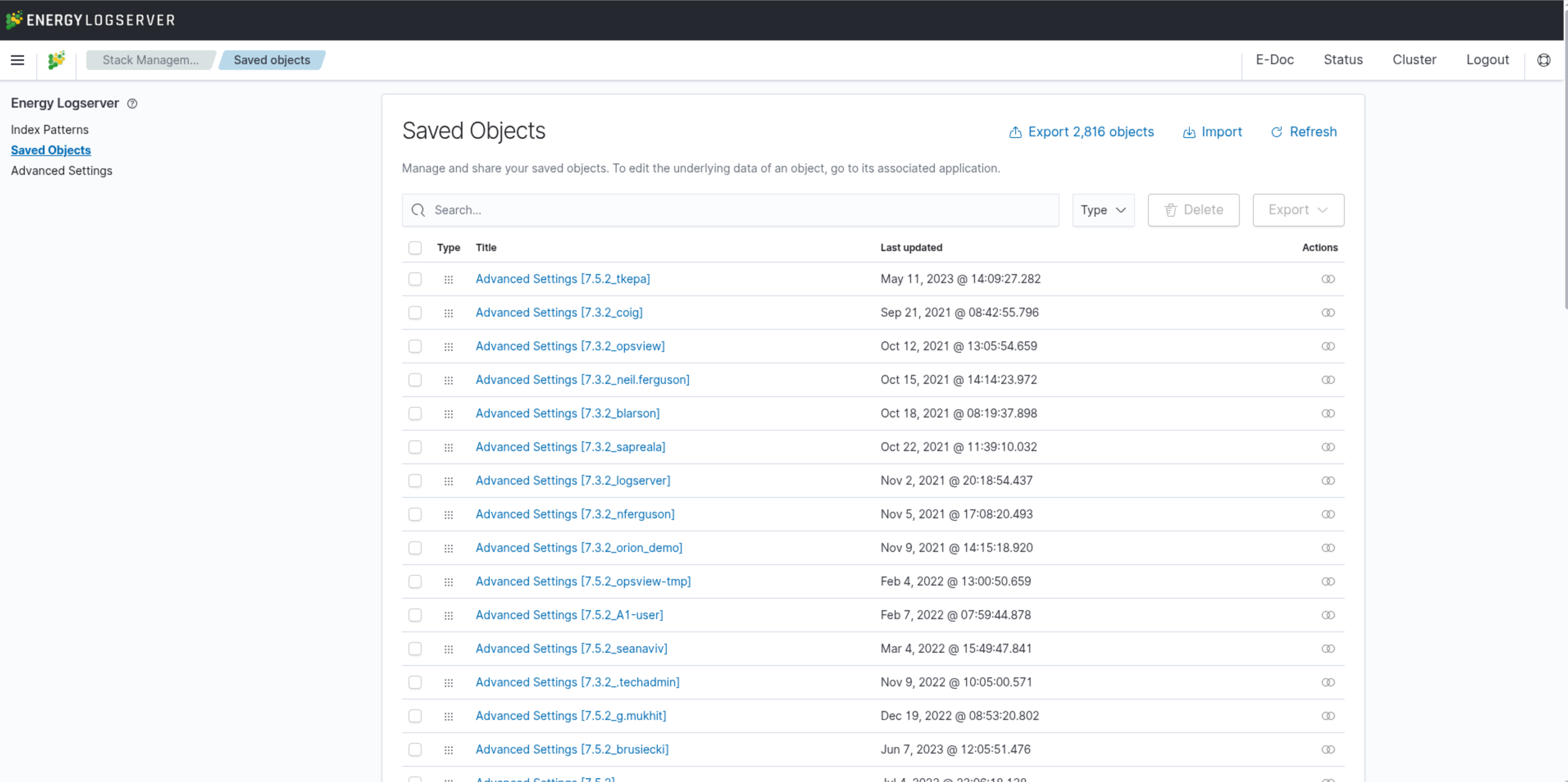
Overview
The page displays all saved objects in a paginated table with 50 rows per page. A search bar and a Type filter allow narrowing the list to specific object types.
Available object types:
config — application configuration objects
url — shortened URLs
index-pattern — index patterns used across the application
query — saved queries
dashboard — saved dashboards
visualization — saved visualizations
visualization-visbuilder — visualizations created with the Visual Builder
search — saved searches (from Discover)
Table Columns
Column |
Description |
|---|---|
Type |
Icon indicating the object type |
Title |
Object name, clickable — opens the object in its associated application |
Last updated |
Timestamp of the most recent modification |
Actions |
Per-row action buttons |
Actions
Per-row actions
Each row provides a Relationships button (chain-link icon) that opens a view showing dependencies between the selected object and other saved objects — useful for identifying what a visualization depends on before deleting it.
Bulk actions
Select one or more rows using the checkboxes to activate bulk actions:
Delete — permanently deletes all selected objects
Export — downloads selected objects as an
.ndjsonfile. The export panel includes an Include related objects toggle (enabled by default)
Import and Export
Export all objects
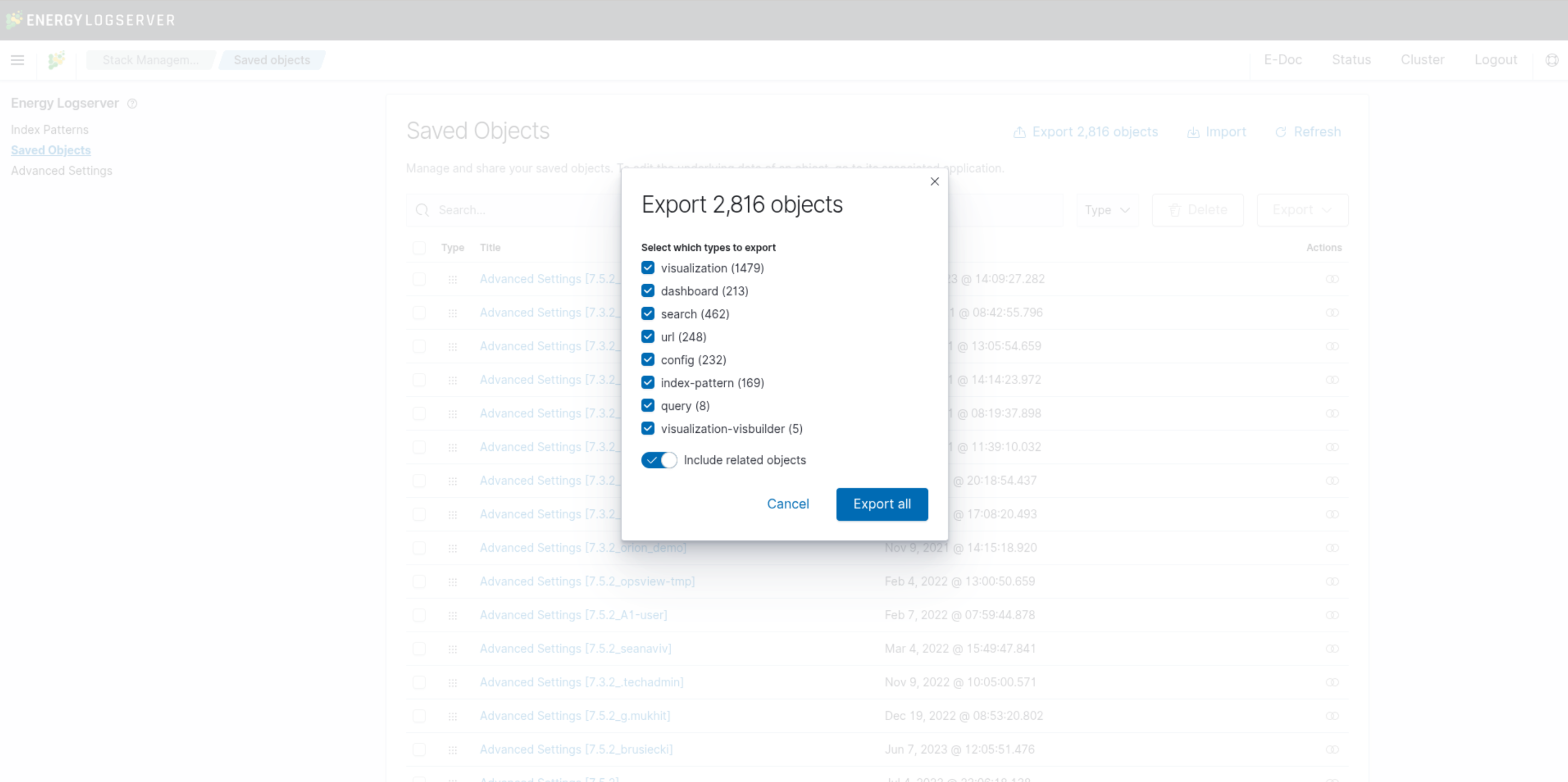
Click the Export button (top right) to open the export dialog. Select which object types to include (all types are selected by default) and click Export all to download the full catalog as an .ndjson file.
Import
Click the Import button (top right) to open the import panel. Upload an .ndjson file using the drag-and-drop area or file picker. Select the import behavior:
Check for existing objects (default) — checks for conflicts with existing objects:
Automatically overwrite conflicts (default) — replaces existing objects without prompting
Request action on conflict — prompts for each conflict individually
Create new objects with random IDs — imports all objects as new, ignoring existing ones
Click Import to complete the operation.
Refresh
The Refresh button (top right) reloads the list to reflect any recent changes.